Showing posts with label class module. Show all posts

Friday, 20 December 2019

Creating Custom Objects with Class Modules

Suppose we wanted to work with a set of related variables with VBA code.  Let's say these variables relate to a person.  The information we want to store and process may include the person's name, age and gender.   The best way to do this would be to create our own custom person object; with the above-mentioned variables as the object's properties, and any code to process or work with these properties, as the object's methods.

The advantage of creating a custom object is that a lot of related information, and the means to process it, is contained within a referenced entity that is easily accessed and used from different parts of the program.

There are two steps to creating a custom object. The first is to create a blueprint or design for the object which defines what information the object holds and the processing to be done on that information. To do this we create what is known as a Class Module. The second step is to create the actual object based on the class module - this is known as instantiation. Once the class module is in place, we can create as many instances, or objects based on the module, as we need. Hence, we may reuse the code we write in the class module over and over again.

Let's go through the steps to create a class module:

Creating a Class Module

  1. Open the database in which the class module is to be created.
  2. Click the CLASS MODULE icon in the MACROS & CODE group of the CREATE ribbon.  This opens the VBA editor ready to enter code in our new class module.
  3. Click SAVE CLASS MODULES in the FILE menu of the VBA editor.
  4. Give the new class module the name "clsPerson" when the SAVE AS dialog window opens.
    Save As dialog window


Although we haven't started to enter code, the new clsPerson Module shows up in the VBA Project in the CLASS MODULES node of the VBA Project Explorer, and in the MODULES section of the main Access Navigation Pane.

VBA Project Explorer

Access Navigation Pane

Code to Create an Instance of the Class Module

We will add code to our class module in the following section. Before doing so, however, let's look at how the class module is instantiated - ie how the blueprint becomes an actual object.

Objects are instantiated in code outside of the class module itself, where the object is to be used - this may be in the code belonging to an Access form or report, or perhaps in a conventional module.

There are two things we need to do. Firstly we define a variable through which the object can be referenced. We do this as follows:

Dim objPerson As clsPerson

Here objPerson is the name of the new object, and clsPerson defines the object's type - ie the Class Module on which it is based.

Secondly, we instantiate the object with the New keyword; and link the object to the variable that we created above with the Set keyword. This is done as follows:

Set objPerson = New clsPerson

However, before we can create an instance of the class we must first add our code to the class module. Let's start by writing the code to create the class module properties.


Setting and Getting Class Module Property Values


The person object we are creating has three properties - name, age and gender.  Class properties are basically variables with CLASS MODULE level scope.  As such, they are declared pretty much the same way as variables in the declarations section of the CLASS MODULE, except we use the PRIVATE keyword instead of DIM.  As such, this is the code we need to write:

Private strName As String
Private intAge As Integer
Private strGender As String

By restricting scope to CLASS MODULE level (as opposed to GLOBAL), the data stored in each variable cannot be accessed directly from outside the class module. This means we must set up a special sort of interface within the class module so we may get and set our object property values after the object has been instantiated.  We do this through PROPERTY LET and PROPERTY GET.  These are located in the main section of the class module code with it's SUB's and FUNCTIONS. Here are the blocks of code to set and get the NAME property stored in the strName class module variable.

Property Let Name(strNameIn As String)
   strName = strNameIn
End Property

Property Get Name() As String
   Name = strName
End Property


Let's examine how these work.  Imagine we have created an instance of the clsPerson class and called it objPerson.  To set the Name property of the object to, let's say, "Sarah",  we would use the following code:

objPerson.Name = "Sarah"

Doing this invokes PROPERTY LET NAME in the clsPerson class module code (see code snippet above).  The string value "Sarah" is received as the strNameIn argument, and is then assigned to the strName class module variable that we set up in the declarations section above.  As such,  PROPERTY LET has set the value of a private class module variable from a location external to the class module itself.

Then to retrieve the value of the objects Name property from outside the class module, we just need to reference the object name (eg objPerson) and property (eg Name) in the same way.  For example, to retrieve the property value and store it in a variable called strGetName we would use the following code:

strGetName = objPerson.Name

Doing this invokes PROPERTY GET NAME in the clsPerson class module (see code snippet above).  PROPERTY GET returns a returns the value of the property by assigning a value to NAME.  As such, "Name = strName" assigns the value stored in the strName class module variable to the objects Name property and returns this value whenever the object's Name property is referenced outside of the class module.  It works in a similar way to calling a VBA FUNCTION.

The Age and Gender properties in the clsPerson class are set and retrieved in the same way.  The screenshot below shows all the class module code to set and get the clsPerson properties:

Class module code for clsPerson

Adding SUB's and FUNCTION's to the Class Module

Class modules and objects are not just about storing and retrieving property values.  As written above, we can also process and work with those property values in all kinds of ways.  To do this, we add SUBs and FUNCTIONs to the class module.  These are referred to as class methods, and providing they have been created using the PUBLIC keyword (as opposed to PRIVATE), they can be called from outside the class module after the object has been instantiated.

We are going to create a simple method to categorize a person based on the information stored in the object properties.  When the method is called after instantiation, it will return one of eight categories which describe the person stored in our object.  These are:

  1. Male under 18
  2. Female under 18
  3. Male 18 to 30
  4. Female 18 to 30
  5. Male 31 to 64
  6. Female 31 to 64
  7. Male 65 and over
  8. Female 65 and over
To do this we shall write a  PUBLIC FUNCTION called categorizePerson. Here is the code we shall use:

Public Function categorizePerson()
On Error GoTo myError 
    Dim strAgeCat As String  
    If intAge < 18 Then
        strAgeCat = "under 18"
    ElseIf intAge > 18 And intAge <= 30 Then
        strAgeCat = "18 to 30"
    ElseIf intAge > 30 And intAge <= 65 Then
        strAgeCat = "31 to 64"
    ElseIf intAge >= 65 Then
        strAgeCat = "65 and over"
    End If
    categorizePerson = strGender & " " & strAgeCat  
leave:
    Exit Function  
myError:
    MsgBox Error$
    Resume leave  
End Function

As we can see, the method uses IF .. THEN .. ELSEIF statements to select an age category based on the value of the age property stored in the intAge class module variable. The person's gender is then added to the description (thereby doubling the number of potential categories) and returned to the calling code.
The code to invoke the method after the object has been instantiated is as follows:

objPerson.categorizePerson()

Testing the Custom Module


In order to demonstrate how all this works in practice, I have created an unbound Access form to test our clsPerson class.  The form allows us to enter the three property values used by clsPerson, and create a new instance of the class containing these values when the SET PERSON PROPERTIES control button is clicked.
After clicking SET PERSON PROPERTIES the btnSet_Click event (shown in the screenshot below) is invoked. It's code creates a new object instance called objPerson using the SET and NEW keywords. The values contained in the unbound textboxes are then referenced and set as the respective Name, Age and Gender properties for the object. Note how the objPerson variable is declared in the declarations section of the form module so it will persist as long as the form is still open or its value is reset to NOTHING when the DELETE PERSON button is clicked thereby invoking the btnDeleteObj_Click event.


Once the object has been created, the btnSet button is disabled through the code logic in the setControls sub (see screenshot above). This also enables the other three buttons which let us retrieve the property values, categorize the person, or delete the object.

Clicking the GET PERSON PERSON PROPERTIES button invokes the btnGet_Click event where the property values are retrieved, added to a string variable, and displayed in the OUTPUT textbox (see screenshot below).


Finally, clicking the CATEGORIZE PERSON button invokes code in the btnCat_Click event and the category is displayed in the OUTPUT textbox (see below)

As such, we can see how the properties and methods in clsPerson (ie PROPERTY LET, PROPERTY GET, and CATEGORIZE PERSON) are invoked with statements such as objPerson.categorisePerson after the object has been instantiated in the TEST CUSTOM PERSON OBJECT form.  I hope this gives you a good example of how VBA class modules and custom objects work in practice.


Saturday, 2 June 2012

VBA Project Anatomy and Scope

Last week I explained how to create an Access VBA Custom Function in a global module.  This was something of a departure from what I covered in previous blog posts.  All of the programming I had covered previously has been associated with a given form or report - what we refer to as a  Class Object.  In this post we are going to take a step back and look at the general structure of a VBA Project as a whole,  and in so doing we will examine the concept and workings of Scope.

VBA Projects
I have mentioned in the past that Access and VBA are two separate, albeit closely related, pieces of development software.  When we create an access database, a VBA project linked to that particular database is created for us automatically.  It is within this project that we create and store all the code relating to our database.

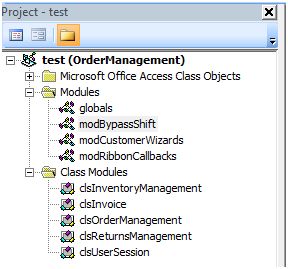
Figure 1: The VBA Project Explorer
showing folders for Class Objects, Modules and
Class Modules.

The VBA project consists of three main elements: these are class objects, modules and class modules. These can be viewed in tree diagram format via the VBA Project Explorer (see Figure 1 right).

Class Objects
Class Objects contain code relating to elements in a  form or report.  We covered these in some detail in the Learning Access VBA series of posts. As you may remember, code from class modules is generally triggered when a form or report event is triggered (for example, the OnCurrent Event is triggered when the user moves into a record displayed on a form).

Modules
Modules, on the other hand are not associated with any particular form or report, but do contain variables, sub procedures and functions that can communicate with them in various ways.  They are a convenient place to keep code which can be read, written to, or called from the class objects.  Moreover, when declared Public, any given variable, sub procedure or function within a Module can be accessed from many different class objects (and sub procedures within class objects) elsewhere in the project.  As such, modules help us organise and manage our code, thereby making our VBA project more logical and efficient. 

Lets elaborate on this further.  Suppose we have a sub procedure called deleteRecord stored in a module.  It purpose is to delete a particular record from a particular table when called.  The advantage of locating this code in a module is so different forms in the database can also make use of this same code.  So rather than  re-write the same section of code in each form, we write it once in a module, and call it whenever one of the forms needs to use it.  As such, we not only write less code, and save time in so doing, but we can easily maintain and modify that code since it is located in one module. That is to say, if we want to change how the  deleteRecord command button behaves in all the sharing forms, we only need update our code in one central place.

Class Modules
So far we have said little about Class Modules, the third main element of a VBA Project.  These are actually worthy of a complete series of blog posts in their own right (something which I may well do in the future). For now, however, let's just say they offer the programmer a way of creating their own custom objects made up of properties, methods and events.  Like conventional modules, class modules also help the programmer organise and manage code, but in a way that is potentially more complex and powerful.

Scope
With the partitioning of class objects, modules and class modules, VBA Projects have the potential to become very large and complicated.  On the one hand these different project 'zones' need to be self contained so something happening in one class module does not interfere with something happening in another elsewhere; yet on the other, they also need to exchange information and communicate.  This is where the concept of Scope comes in.

The concept of scope relates to the way in which different zones of a VBA Project partition the processing of data that occurs within and between each of those sections. We are going to illustrate how this works in relation to variables and sub procedure/function calls. Lets start with how variables behave within a form's object class.

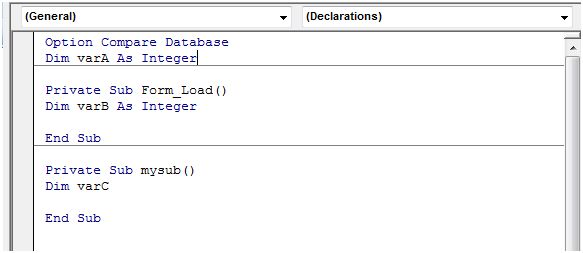
Figure 2:  A basic Class Object to illustrate Scope .

Variables and Scope
The screenshot in figure 2 shows a class object containing two sub procedures, Form_Load() and mySub().  A total of three variables are declared within the class object, two of which, - varB and varC  -are contained within sub procedures. VarA on the other hand is declared above both sub procedures in what is known as the General Declarations section.  The difference in positioning has a direct effect on the scope of each variable.  Let's examine this in more detail.

VarB is declared within the form's Form_Load() sub.  This means the scope of varB is local to this sub, and can only be accessed by code within it.  As such, we can can only read and write to this variable from within the same sub procedure in which it is declared. So, for example, if we assign a value to varB within the Form_Load() sub, we will not be able to read that value from code executed within mySub and vice versa.  This is what is meant by a local variable.

VarA on the other hand is written within the General Declarations section outside of any sub procedure.  The scope of any variable declared here is class object wide.  That is, it can be accessed from anywhere within it's own class object.  As such, we can assigned a value to varA in the Form_Load() sub, and then read that same value externally from mySub.  What we can't do, however, is access the variable from outside of this particular class object.  To do this we need to declare a Public Variable from a Module.

Public Variables
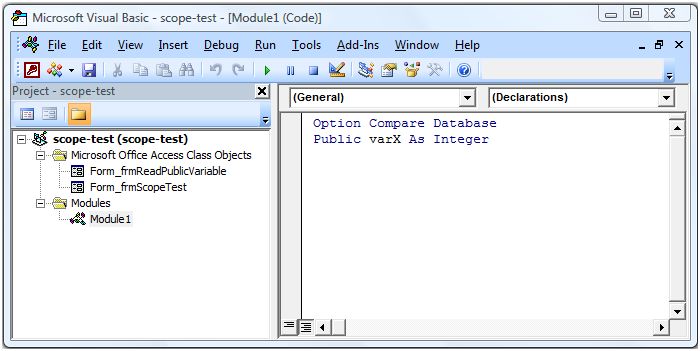
The scope of a public variable declared in a module is project wide - that is to say, it can be accessed from any class object, module or class module in the project.  Public variables are declared using the Public Statement (as opposed to the usual Dim Statement) in the module's General Declarations section (see Figure 3 below for an example).

Figure 3: The shows the Public Variable, varX, in the General Declarations section of Module1.
As you can see, the VBA Project in Figure 3 contains two class objects (Form_frmReadPublicVariable and Form_frmScopeTest) and a module (Module1).  Since the variable varX has been declared with the Public statement in the General Declarations section of Module1, it can be accessed from both class objects.  As such we can assign a value to varX in the Form_frmScopeTest class object, and then read that same value some time later from a sub procedure in Form_frmReadPublicVariable.  However, the disadvantage of using public variables is that they make code potentially more difficult to debug, especially in large projects where the variable might be accessed from sub procedures in many different class objects, modules and class modules.  To some extent we could say that public variables undermine the code management advantages from working in a partitioned VBA project.  That said, they can be a really useful programming tool if used carefully.

Scope and Persistence
Before we move on to look at sub procedure and function calls, it is important to say something about the nature of scope and persistence.  In the context of scope, persistence is how long a value assigned to a variable lasts or persists.  How long, that is, before the variable value is lost and forgotten.  So, for example, if we assigned a value to a local variable declared within a sub procedure using the Dim Statement, that value will persist only as long as the sub procedure is running(1).  Once the sub has finished the value assigned to the variable no longer persists.  Likewise if a variable is declared within the general declarations section of a form class object, any value assigned to the variable will only persist whilst that form is still open.  Once closed the value is lost. Of course it is public variables which have the greatest persistence.  Any value assigned to one of these will last until the database application is closed.

(1) There is an exception to this rule.  We can declare the variable using the Static Statement instead of Dim.  Doing so enables the value to persist, but only within the sub where it has been declared.  The next time that particular sub executes, the previous variable value is remembered and can be read by code (providing that code is still within the same sub).

Scope and Sub Procedure / Function Calls
If you read my post on Writing Custom Functions for Access VBA last week, you may already be familiar with the concept of calling a function.  You may recall how the myPercentage function located in an external module was called from a sub procedure within a form's class object.  You may also recall how we passed three parameters to that function.  The significance of being able to pass parameters in this way, is very important from the perspective of scope.  That is to say, if the calling sub procedure needs to share a local variable with the called function or sub, passing local data in the form of a parameter enables us to bypass the issue of scope.  As such, parameters are a way of letting various parts of the VBA project share information and communicate without compromising the real need to keep the project strictly partitioned in an organised manner.

Lets examine a simple example of how passing a parameter, this time in a sub procedure call, can bypass the issue of scope:

Private Sub Command9_Click()
    Dim varThis As Integer
    varThis = 10
    Call thatSub(varThis)
End Sub


Private Sub thatSub(argReceived As Integer)
    MsgBox ("The argument received is: " & argReceived)
End Sub


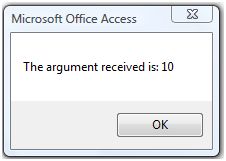
Here we have two private sub procedures within the a form's class object.  When the user clicks a command button, the Command9_Click sub procedure begins to run.  It defines a local variable called varThis and assigns it with the integer value 10.  The next line calls the thatSub sub procedure, passing the local variable varThis as the parameter.  This call results in the execution of thatSub.  Notice how the first line of thatSub contains the code argReceived As Integer within brackets.  This is where the passed parameter (varThis) is received by the called sub procedure.  The parameter which has been passed is now referred to as an argument, and it's value can be accessed from code within the receiving sub procedure.  As such, when the second line of code in thatSub runs, a message is displayed ending with the value contained in argReceived (see figure 4 below).  

Figure 4: The message displayed from the
 MsgBox method in thatSub.
We see, therefore, that the value contained in what is a local variable has been passed to a different sub procedure which would otherwise have been outside that variable's scope.

Conclusion
In this post we have seen how the VBA project is partition into various zones, and how those zones are largely self contained in terms of data processing.  This partitioning is maintained via a set of rules collectively known as scope, the advantage of which is the management of code within the project.  Since there is a legitimate requirement for these zones to exchange information, the working of scope can be bypassed in a managed manner through the passing of parameters and receipt of arguments.